
Many people who use USB-C devices have encountered this situation: you buy a so-called “full-function fast charging cable” at a high price, and the charging speed is indeed okay, but transferring a 10GB movie takes more than ten minutes, several times slower than a friend’s same cable — the problem may lie in the USB data link, or it may be related to the device port, cable, storage performance, adapter device, or system status, which can only be determined after testing.
It should be clarified first that this article is a consumer-level practical measurement guide for ordinary users, and is not equivalent to the official CTS test standards or certification reports of USB-IF (USB Implementers Forum). The core is to help everyone understand parameters, avoid promotional pitfalls, and test real performance by themselves, so that you can troubleshoot false labeling and faults without professional equipment.
First Understand 5 Core Concepts: Stop Confusing Data, Interface, and Charging
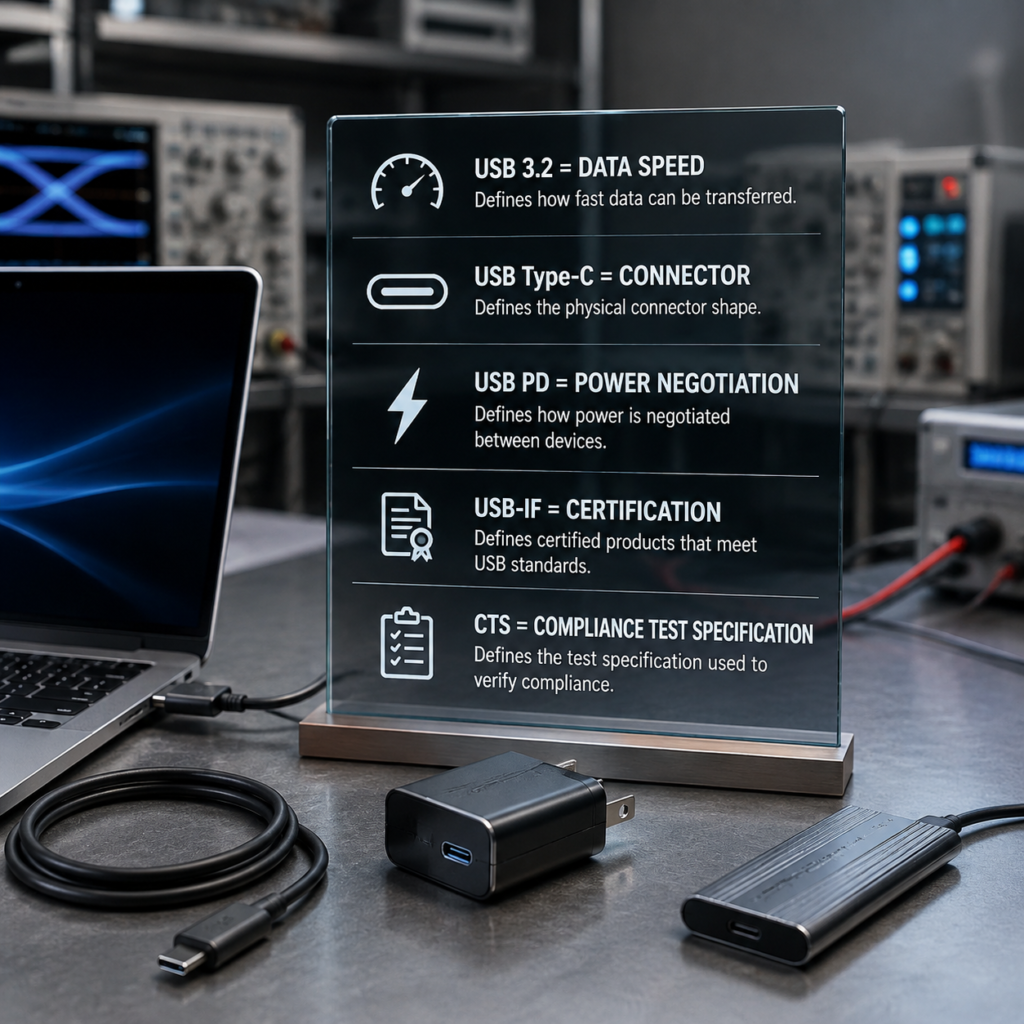
Many people fall into pitfalls when buying charging accessories, essentially because they mix up several concepts with “USB” in their names. Their functions are completely different, to use a popular metaphor:
- USB 3.2: It is the “highway standard” that governs the speed of data transmission, defining different speed levels such as 5Gbps, 10Gbps, 20Gbps and link requirements, and has no direct relationship with charging speed.
- USB Type-C: It is the “shape of the interface”, that is, the small interface that can be plugged in both forward and reverse. It only specifies the physical form such as pins and cable structure, and does not mean it supports high-speed data, nor does it mean it supports fast charging.
- USB PD: It is the “power supply negotiation rule” that governs charging power, responsible for communicating with the device how many watts of power are needed, and does not involve data transmission rate at all.
- USB-IF Certification: It is the official “compliance certificate”. Products need to complete the applicable compliance tests specified by USB-IF according to their category, function and declared speed, and submit and complete the certification according to the USB-IF process. It only covers the certified specific models and tested configurations, and is not applicable to all products of a brand.
- USB-IF CTS: It is the official “test operation manual”, with the full name of Compliance Test Specification, which defines the items, conditions, and judgment standards of certification tests. It is only used by professional laboratories, and ordinary users do not need to master it.
Why Do Charging Users Also Need to Understand USB 3.2?
Today’s USB-C cables look almost identical, but their internal differences are huge: some are pure charging cables with only power supply pins, some are basic cables that support USB 2.0 (480Mbps), and some are high-speed cables that support USB 3.2. The difference between USB 2.0’s 480Mbps and USB 3.2’s 5/10/20Gbps levels is obvious, with a maximum difference of more than 40 times; pure power supply cables do not have usable data transmission rates.
Many merchants use vague promotions such as “full-function C port” and “fast charging cable” to play edge balls. Knowing a little about USB 3.2 can help you quickly distinguish between pure charging cables and data + charging dual-use cables, and avoid promotional traps.
Which Charging Products Need USB 3.2 Performance Testing?
Not all charging accessories need data performance testing, only products that are claimed to have high-speed data functions are necessary:
- Need to test: PD fast charging cables claimed to have high-speed data, charging devices with Hub/data ports (such as desktop charging stations with data transmission function), charging and data dual-use C ports of mobile phones/laptops.
- No need to test: Pure charging cables, power-only C ports, charging accessories of USB 2.0 and below.
The Boundary Between Official Testing and User Self-Testing
Many people confuse the speed they measure with official certification, but the two are completely different:
- Official CTS test: It tests deep indicators such as underlying electrical performance, protocol consistency, and multi-device interoperability. Only after passing can you apply for the corresponding USB-IF certification. It requires professional signal analyzers, test fixtures and other equipment, which ordinary users cannot do at all.
- User self-test: The core is to verify the data experience and stability in actual use, which can quickly screen for false labeling, faults or degradation problems, but it cannot replace official certification, nor can it be used as a basis for compliance judgment.
Nominal Interpretation: Avoid Naming Pitfalls and Understand the Real Speed
When buying USB 3.2 related products, the easiest pitfall to step on is the chaotic naming — merchants casually label “USB 3.2”, but the actual speed may be several times worse.
4 Link Modes of USB 3.2: Don’t Worry About the Number of Lanes, Just Look at the Speed Number
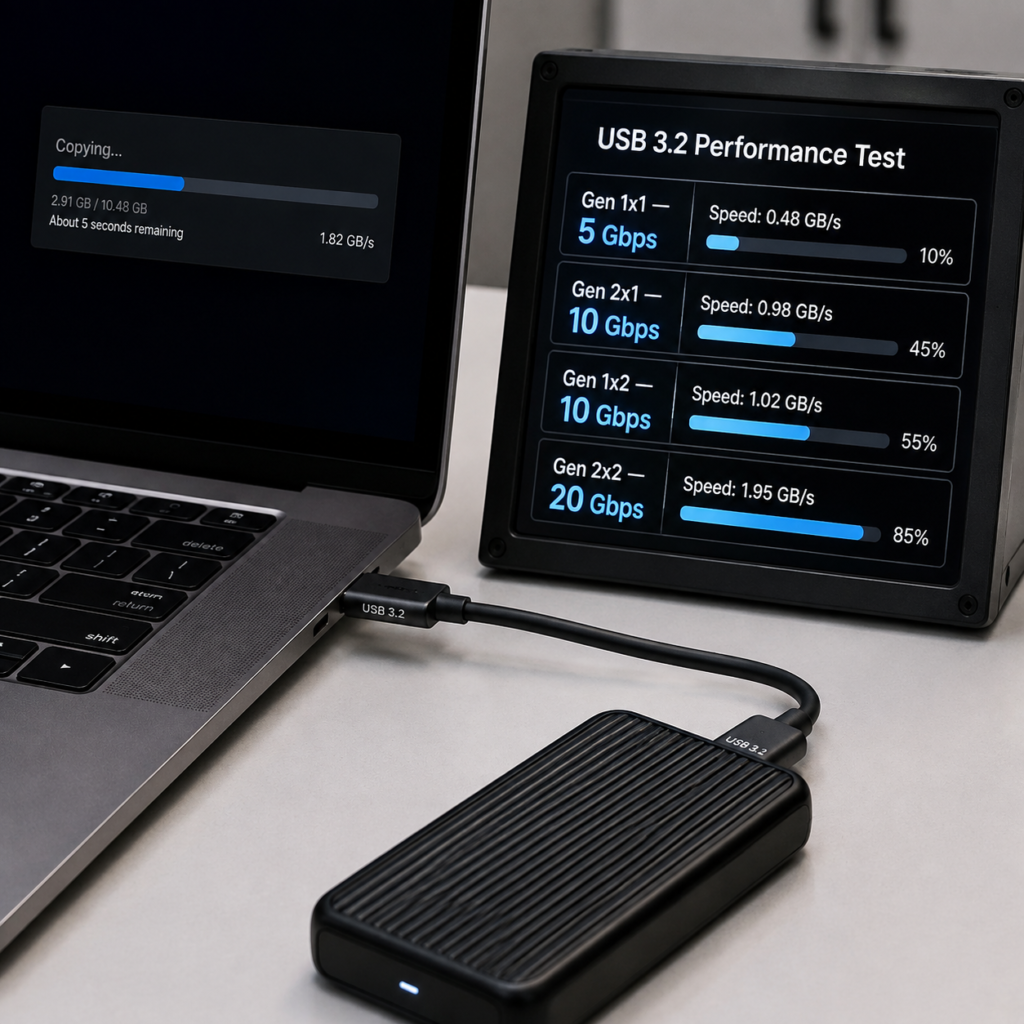
USB 3.2 has a total of 4 link modes, corresponding to different speeds:
- Gen 1×1: 5Gbps, the most common entry-level high-speed gear;
- Gen 2×1: 10Gbps, the current mainstream high-speed gear;
- Gen 1×2: 10Gbps, only supports USB-C interface, implemented by merging two 5Gbps lanes, rarely used in charging accessories;
- Gen 2×2: 20Gbps, formerly known as SuperSpeed USB 20Gbps, implemented by merging two 10Gbps lanes, belonging to the high-end high-speed gear.
For ordinary users, there is no need to worry about whether it is ×1 or ×2 lanes at all. Just look at the clearly marked 5/10/20Gbps speed number of the product, which is the most intuitive judgment standard.
Naming and Promotion Pitfall Avoidance
Because the USB naming rules have been changed several times, many merchants use old names or vague labels to deceive people:
- USB 3.0 and USB 3.1 Gen1 usually correspond to USB 3.2 Gen1×1 (5Gbps); USB 3.1 Gen2 corresponds to USB 3.2 Gen2×1 (10Gbps). When only USB 3.1 or SuperSpeed USB is written, you still need to check the Gen level or clear speed;
- If the product only marks “USB 3.2” but does not indicate the Gen level or specific speed, it is a serious lack of information, never buy blindly;
- When buying, prioritize the clearly marked speed number and interface type, don’t just look at the version name.
Four-Layer Speed Concept: Why Is the Nominal 10Gbps Not That Fast for Actual File Transfer?
Many people will wonder: it is clearly marked 10Gbps, but the file transfer is only a few hundred MB/s, is it false labeling? In fact, it is because the speed is divided into four layers, and the nominal value everyone sees is not at the same level as the actual file speed:
- Link capability: The highest physical layer rate supported by the device/cable hardware, that is, the nominal value of the product, equivalent to the designed maximum speed limit of the highway;
- Negotiated rate: The highest available rate automatically matched after the two ends of the device are connected, limited by the barrel effect. For example, if the computer only has 5Gbps, even if the cable is 10Gbps, the negotiated rate is only 5Gbps. This value can be found in system tools;
- Application layer effective throughput: The actual speed that can be used to transmit data after deducting the overhead of the USB protocol itself, equivalent to the available lanes of the highway after deducting emergency lanes and toll stations;
- File copy speed: The transmission speed that users can actually see, which is also affected by hard disk performance, file system, bridge chip, etc., equivalent to the actual speed you can drive, which depends not only on the speed limit of the road, but also on how good your own car is.
Conversion Between Theoretical Rate and Actual Speed
The Gbps that everyone often sees is the bit unit of the physical layer, while the file transfer speed MB/s we usually talk about is the byte unit. 8 bits are approximately equal to 1 byte, so directly convert according to the nominal line rate:
- 5Gbps is approximately 625MB/s;
- 10Gbps is approximately 1250MB/s;
- 20Gbps is approximately 2500MB/s.
But these are only the values obtained by directly dividing the nominal line rate by 8, not the peak that can be achieved by the application layer or file transfer. USB encoding and protocol will further reduce the available throughput. Among them, the 5Gbps link uses 8b/10b encoding, and the encoded rate is about 500MB/s; 10Gbps and 20Gbps links also need to deduct 128b/132b encoding and protocol overhead, and the file copy speed will be lower.
In actual use, it is also affected by factors such as USB protocol overhead, storage performance, bridge chip, temperature, etc. It is impossible to reach the theoretical value obtained by simple conversion, and there is no unified compliance ratio. Taking a 10Gbps link with a sufficiently high-performance external SSD as an example, the continuous read and write is usually about 800-1050MB/s, but the actual result depends on the bridge chip, SSD, operating system and test method, and a fixed value cannot be used as a unified qualification line.
Key Reminder: USB-C ≠ Supports USB 3.2
This is the most common cognitive misunderstanding: USB-C is only the shape of the physical interface, and does not mean that it supports USB 3.2 at all. Many low-cost fast charging cables on the market, although they are USB-C interfaces, only have USB 2.0 data lines inside or even only power supply lines, which cannot run high speed at all.
Also note that rates of 20Gbps and above must use a USB-C full-function link, and the USB-A interface can only support up to 10Gbps USB 3.2 Gen2×1. Moreover, the high-speed function will only take effect when the host, cable, and peripheral all support the corresponding level at the same time, and any missing one will cause degradation.
Core Test Content: What the Official Tests, What Users Should Test
USB 3.2 performance testing is divided into two categories: one is the CTS compliance test in official laboratories, which ordinary users cannot do and do not need to do; the other is consumer-level experience verification, which fits our daily use scenarios and can be done by yourself.
Official USB-IF CTS Test: Items That Ordinary Users Do Not Need to Self-Test
The official CTS tests all underlying indicators and requires professional equipment. There are three main categories related to charging:
- Host/peripheral category: For example, the host end of a charging device with data function will test transmit/receive signal quality, link training, protocol consistency, etc., to ensure compliance with the underlying specifications of USB 3.2;
- Cable category: Including USB-C fast charging cables, divided into passive and active types, will test insertion loss, crosstalk, signal integrity, performance consistency in different plugging directions, etc., to ensure stable signal transmission;
- Hub/docking station category: For example, a desktop charger with a Hub will test the rate matching of uplink and downlink ports, bandwidth sharing logic, multi-device interoperability, etc., to ensure that there will be no problems when multiple devices are used at the same time.
Products must complete the applicable compliance tests specified by USB-IF according to their category, function and declared speed, and submit and complete the certification according to the USB-IF process. The certification scope only covers the corresponding models and tested configurations. Different product categories, function declarations and applicable specifications correspond to different test items, and not all products implement exactly the same set of items.
Consumer-Level Experience Verification: Core Test Items Fitting Charging Scenarios
For ordinary users, don’t worry about the underlying electrical parameters, just test these items closely related to actual use:
- Link negotiated rate verification: Confirm whether the actual negotiated rate after connection reaches the nominal level, which is the most basic step;
- Continuous large file read and write verification: Test the transmission speed in real scenarios, reflecting the actual experience of daily file transfer;
- Long-time transmission stability verification: Observe whether there is speed drop, disconnection or device reset during long-time transmission, which is used to evaluate the stability under this test combination; it cannot be used alone to determine electromagnetic immunity or official compliance;
- Cross-device compatibility verification: Test whether the corresponding speed can be normally achieved when devices of different brands are matched;
- Power supply and data parallel verification: That is, the test of charging while transferring, which is the most concerned item in charging scenarios.
Core Principle of Parallel Power Supply and Data: Charging While Transferring Does Not Directly Reduce Speed
Many people think that charging while transferring data will slow down. In fact, in a compliant direct-connected USB-C link, USB PD performs power supply negotiation and control through the CC pin, and the actual power is transmitted through VBUS; PD negotiation itself does not occupy USB high-speed data bandwidth, so it will not directly cause speed reduction.
If you encounter speed drop or disconnection while charging and transferring, the common reasons are as follows: Hub/docking station sharing uplink bandwidth, insufficient power supply budget, device overheating triggering protection, terminal storage speed reduction, firmware restrictions, etc. It cannot be directly attributed to USB 3.2 or PD specifications, and you must first troubleshoot the architecture and settings of the device itself.
Test Prerequisites: If the Conditions Are Wrong, the Test Is Useless
The test results of USB 3.2 are affected by many factors. If the prerequisites are wrong, the results have no reference value at all.
Hardware Barrel Effect: The Slowest Component Determines the Final Speed
The highest negotiated rate of a USB link is always determined by the component with the lowest level, just like a barrel holding water, the shortest plank determines the water level. The involved components include the host interface, cable, peripheral interface, and storage device. Any one that lags behind will lower the overall speed.
Therefore, when testing, the sustained performance of the storage device used for testing should be significantly higher than the expected effective throughput of the tested USB link under the same read/write direction and test method. It is best to use an SSD that has been verified by an independent interface and has sufficient performance margin, and explain its test conditions. Otherwise, the measured speed may only be the upper limit of the storage device, not the speed of the USB link. For example, if you want to test a 10Gbps fast charging cable but use an ordinary USB flash drive with only 500MB/s read and write, it will definitely not be full, and the result is meaningless.
Take the most common example: a 10Gbps fast charging cable plugged into a computer C port that only has 5Gbps can only run up to 5Gbps. This is not a problem with the cable, but a limitation of the host port.
Environmental and Physical Influencing Factors
Different levels of testing have vastly different environmental requirements:
- Consumer-level speed test: Not too strict, as long as the interface is clean and not loose, the cable is not damaged or sharply bent, and avoid extreme high temperature environments. There is no need to deliberately avoid daily electromagnetic interference;
- Laboratory compliance test: The requirements are very strict. It is necessary to control the EMI (electromagnetic interference) environment in a shielded room, use professional test fixtures and calibrated equipment, and eliminate all external interference.
In addition, cable length also has an impact: the longer the cable, the higher the risk of signal loss and crosstalk, but it does not mean that long cables must not meet the standard. Whether it can meet the standard depends on the cable structure, shielding layer quality, connector technology, etc. Good active cables can even be several meters long and still run full 20Gbps.
Test Caliber Requirements: Don’t Be Fooled by Instantaneous Peaks
The “high speed” promoted by many merchants is actually an instantaneous peak, which has no practical reference value. Pay attention to these points when testing:
- Test the continuous and stable transmission speed, do not take the instantaneous peak caused by storage cache as the result;
- Before testing, close background programs that occupy resources or bandwidth such as downloads, cloud sync, and antivirus scanning;
- Test both read and write bidirectional speeds, do not only test unidirectional;
- Exclude the influence of non-USB link factors such as storage, drivers, file systems, and bridge chips.
Impact of Power Supply Status on Test Results
Because we are testing charging-related products, the impact of power supply status on the results should be paid special attention to:
- For bus-powered devices (such as a mobile phone connected to a computer C port and powered by the computer), if the bus power supply is insufficient, the device may fail to start, reset repeatedly, disconnect, or have limited functions; if speed reduction is observed, you should check the link negotiation, device firmware, and system power management at the same time, and cannot directly attribute the speed reduction to insufficient power supply;
- For charging devices with Hub/docking station, when multiple devices are used at the same time, speed reduction may occur due to shared uplink bandwidth or insufficient power supply budget;
- The PD power supply of a compliant direct link itself does not affect the high-speed data bandwidth, so don’t blame all speed drops during charging and transferring on the power supply.
Simple Self-Test Method for Ordinary Users: Can Test Without Professional Instruments
You don’t need expensive professional equipment, you can complete most consumer-level verification items with the computer and high-speed storage at hand.
Pre-Test Preparation
- Prepare two devices that support the corresponding rate, such as a computer with a 10Gbps native C port + a high-speed external SSD;
- The sustained performance of the storage device under the same read/write direction and test method should be significantly higher than the expected effective throughput of the tested USB link; it is best to use an SSD that has been verified by an independent interface and has sufficient performance margin, and explain its test conditions;
- Prepare a known qualified reference product of the same rate (such as a cable that is confirmed to run full 10Gbps) to troubleshoot bottlenecks;
- Close the programs that occupy resources in the computer background, and unplug unrelated USB devices.
Common Speed Test Tools and Applicable Scenarios
You don’t need to install a bunch of software, these few are enough:
- System information tools: Windows Device Manager is mainly used to confirm devices and drivers, and usually cannot directly display the current USB link rate; you can use USB topology tools such as USB Device Tree Viewer and USBView, or verify through actual throughput testing. The USB information in the macOS System Report will display rate information such as “Up to …” on some devices, but it should also be confirmed with actual measurements;
- Disk speed test tools: Such as CrystalDiskMark and fio, which can customize test parameters, have stable results, and are suitable for testing the effective throughput of the application layer;
- System built-in file copy: The closest to daily use scenarios, suitable for testing real file transfer speed, but you need to use large files for testing and observe the sustained speed after the cache is exhausted.
Large File Copy Test Method: The Closest to Daily Use
If you want to know the actual speed of use, the large file copy test is the most intuitive method:
- Prepare a single large file of more than 10GB (such as a movie, disk image), do not use a bunch of small files, the random read and write of small files fluctuates greatly, and the result is inaccurate;
- Test the copy time of computer → peripheral and peripheral → computer bidirectional respectively, and calculate the average speed;
- Repeat the test 3 times and take the average value to eliminate accidental interference;
- Must be directly connected by cable, subject to the sustained speed after the storage cache is exhausted, do not count the peak speed at the beginning.
Quick Check of Link Negotiated Rate
If you just want to quickly judge whether there is degradation, you don’t need to transfer files, you can also check with the system or USB topology tools:
- Windows: Device Manager is mainly used to confirm devices and drivers, and usually cannot directly display the current USB link rate. You can use USB topology tools such as USB Device Tree Viewer and USBView to view information such as connection speed, or verify through actual throughput testing;
- macOS: Open System Report → USB, select the corresponding device, some devices will display rate information such as “Up to …”, but it should still be confirmed with actual throughput.
If it shows USB 2.0 (480Mbps), don’t rush to judge that the product is falsely labeled. First, replace the native high-speed interface of the motherboard, replace the cable, troubleshoot the adapter or the front panel of the chassis — many front C ports of the chassis are USB 2.0, or the adapter does not support high speed, these are common reasons for degradation.
Exclusive for Charging Scenarios: Power Supply and Data Parallel Test
For charging cables and charging devices with Hub, you can specifically test the performance of charging while transferring:
- Direct connection scenario: Use the computer’s native C port to fast charge the mobile phone, and transfer large files at the same time, observe whether the transmission speed drops significantly and whether the charging power is abnormal;
- Hub charging device scenario: For example, a desktop charging station with a Hub, connect a high-speed hard disk and a mobile phone for charging at the same time, observe whether the transmission speed and charging speed are abnormal;
- If there is no USB power meter, you can only record the charging status displayed by the mobile phone system as a qualitative reference, and cannot reliably calculate or compare the input power based on this; if you need a power conclusion, you should use a suitable USB power meter and clarify the measurement position.
Limitations of Self-Test Results
Be sure to understand the boundaries of self-testing and do not over-interpret the results:
- You cannot judge that a product has passed the USB-IF official certification based on a single speed test;
- You cannot directly attribute storage speed reduction to the USB link, you must first exclude the bottleneck of the storage itself;
- Self-test can only be used to screen for false labeling, degradation or fault problems, and cannot replace official compliance testing.
Test Record Template: Ensure Results Are Reproducible
If you want the test results to have reference value, it is best to record key information for subsequent comparison or troubleshooting. You can refer to this template to record:
| Category | Record Content |
|---|---|
| Basic Information | Host model, port type (native/expansion), cable nominal rate/length, peripheral type/bridge chip |
| Test Conditions | File size/type, read/write direction, ambient temperature, power supply status, software version |
| Test Results | Negotiated rate, continuous stable speed, whether disconnection/speed drop occurs |
Only when the results of repeated tests under the same conditions are consistent can they have reference value.
Result Interpretation and Abnormality Troubleshooting
How to judge whether the result is normal after the test? How to find the cause when encountering problems? Just follow this idea.
Prerequisites for Valid Results: Reproducible + Complete Records
First of all, it must be clear that only test results that are reproducible and have complete records are useful. If key conditions such as port type and storage specification are missing, it is impossible to judge the product performance at all. For example, if you only say “this cable ran 500MB/s” without saying what computer and what hard disk were used, no one knows whether it meets the standard.
3 Key Information for Parameter Verification
Before interpreting the results, first check these three key information:
- The nominal rate/Gen level of the tested product, and the level of the supporting equipment — the level of the supporting equipment cannot be lower than that of the tested product, otherwise what is measured is the upper limit of the supporting equipment;
- The cable condition, ambient temperature, and power supply status during the test — different conditions will lead to great differences in results;
- Whether the speed you measured is the peak or the continuous stable speed — the peak has no practical reference value.
USB-IF Certification Verification Method
Don’t just look at the “USB-IF Certification” logo printed on the packaging, many merchants will print it randomly. The correct verification method is:
- Check the specific model, product category, and applicable rate. Certification only covers the corresponding model and tested configurations, not all products of a brand;
- You can query the certification status through the official USB-IF product database, enter the model or manufacturer name to check;
- Even if a single speed test meets the standard, it does not mean that the product has obtained official certification. The product still needs to complete the applicable USB-IF compliance tests according to its category, function and declared speed, and submit and complete the certification according to the USB-IF process.
User-Level False Labeling Screening Logic (Non-Official Criterion)
Ordinary users cannot do official certification tests, but can initially screen for suspected false labeling through comparison. Note that this is only a user self-check method, not an official judgment standard:
- Step 1: Confirm that the link negotiated rate reaches the nominal level, first eliminate the problem of negotiation degradation. For example, if the cable is marked 10Gbps but the negotiated result is 5Gbps, then first find the reason for the negotiation, such as the interface does not support it, the adapter does not support it, etc.;
- Step 2: Use the same host, same port, same test medium, compare the continuous stable speed of a known qualified reference product of the same rate;
- Step 3: If the speed of the tested product is significantly lower than that of the reference product, and all other bottlenecks (such as storage, interface, driver, etc.) have been excluded, you can suspect false labeling or quality problems.
There is no unified fixed qualification line, and all judgments must first exclude the influencing factors of non-USB links.
Bottleneck Troubleshooting Logic for Insufficient Speed
If the measured speed is not enough, troubleshoot in this order to find the bottleneck the fastest:
Host port → Cable → Device port → Storage performance, the slowest component is the bottleneck.
The most practical method is the control replacement method: replace known qualified components one by one. For example, first replace a confirmed good cable. If the speed increases, it is the problem of the original cable; if it is still slow, try another high-speed interface, and so on.
Take two common examples:
- If the fast charging cable transfers files slowly, first check whether the C port of the device supports USB 3.2 of the corresponding rate — for example, many mobile phones’ C ports only support USB 2.0, no matter how good the cable you use, it can’t run fast;
- If the C port of a charging device with a Hub cannot transfer data, first confirm whether this port has a data function — many chargers’ C ports only implement power supply and cannot transfer data at all.
Common Abnormality Troubleshooting Steps
When encountering these common problems, you can quickly troubleshoot according to this procedure:
- Speed close to USB 2.0 (tens of MB/s): First check if it is a pure charging cable, then replace the native high-speed port of the motherboard, and troubleshoot the adapter, expansion port or front panel of the chassis;
- Speed drop/disconnection while charging and transferring: First confirm whether it is the Hub sharing uplink bandwidth. For example, the docking station has only one uplink port, and connecting multiple devices will share bandwidth, then check whether the power supply budget is sufficient;
- Repeated disconnection/device disappearance: First check if the interface is loose or dusty, then replace a shorter high-quality cable, and finally check whether the power supply status is normal.
Common Misconceptions and Specification Applicable Boundaries
Finally, correct several high-frequency cognitive misconceptions, clarify the scope of application of this specification, and avoid using it in the wrong place.
4 High-Frequency Cognitive Misconceptions
- Misconception 1: USB 3.2 cables charge faster Truth: USB 3.2 is a data transmission standard and has no direct relationship with charging speed. The charging speed depends on the fast charging protocol (such as PD, QC) and the current-carrying capacity of the cable. Many USB 2.0 cables can also support 100W fast charging.
- Misconception 2: All USB-C interfaces support USB 3.2 Truth: USB-C is only the shape of the interface. Many low-cost fast charging cables and cheap charger C ports only have USB 2.0 or even pure power supply, and do not support USB 3.2 at all.
- Misconception 3: If the speed does not reach the theoretical value, it is unqualified Truth: The theoretical value is the peak rate of the physical layer. In actual use, it is affected by various factors such as protocol overhead, storage, temperature, etc., and it is impossible to reach the theoretical value. To judge whether it is good or bad, you should compare it with a qualified reference product under the same conditions, and cannot take the theoretical value as the standard.
- Misconception 4: All C ports of chargers can transfer data Truth: The USB-C ports of many independent chargers only implement power supply and do not provide USB data functions; whether data can be transferred depends on whether the port is connected and implements USB host, device or Hub functions, and cannot be judged only by the shape of USB-C.
Specification Applicable Boundaries
- Backward compatibility rule: When a USB 3.2 device is plugged into a USB 2.0 interface, it can only run at the rate of USB 2.0, which is normal, not a product problem;
- Differences from USB4/Thunderbolt: USB4 and Thunderbolt are connection and transmission technologies different from the USB 3.2 naming system; USB4 can tunnel USB 3.x, and some USB4/Thunderbolt devices also support USB 3.2 backward compatibility. This article only tests the USB 3.2 link capability, and does not evaluate the proprietary functions and rates of USB4 or Thunderbolt based on this;
- Certification and use experience are not the same thing: USB-IF certification means that a specific model and its declared configuration have passed the applicable USB-IF compliance requirements; it does not guarantee the best experience in all use scenarios, nor does it mean that other models of the same brand or untested configurations are also certified;
- The test specification in this article only covers the high-speed data performance of USB 3.2, and does not cover other indicators such as charging power and electrical safety.
Summary
After reading this content, you should be able to independently complete these things:
- Distinguish the division of labor of USB 3.2, USB Type-C, USB PD, USB-IF certification, and CTS, and no longer mix up several concepts;
- Understand the 4 link modes of USB 3.2 and the 5/10/20Gbps speed levels, and avoid merchants’ naming and promotion pitfalls;
- Distinguish the boundary between official CTS testing and user self-testing, and know the scope of application and limitations of self-testing;
- Self-test the data performance of USB-C charging cables and charging devices with data functions according to the standardized steps, and obtain reproducible results;
- Initially screen for suspected false labeling of USB 3.2 charging accessories, and quickly locate common bottlenecks such as slow transmission and disconnection;
- Correctly verify the USB-IF certification status, and will not be misled by false labels on the packaging.
In the future, when you buy USB-C charging accessories or encounter slow file transfer problems, you won’t be fooled by merchants, and you can judge and troubleshoot by yourself.