
If you have ever bought a USB-C port hard drive enclosure, docking station, or data cable, you have most likely seen labels like “USB4”, “USB 4.0”, or “full-featured Type-C”. Many people think any USB-C port is universally compatible, only to find that it only charges when plugged in, transfers files slower than a regular USB flash drive, or has no signal when connected to a monitor — this is most likely because you don’t understand the core requirements of the USB4 specification.
Many people easily confuse the USB-C interface with the USB4 protocol, and also don’t understand its relationship with PD charging and Thunderbolt 4. In this article, we will thoroughly explain the core requirements of the USB4 specification from beginner to advanced level. After reading it, you will not only be able to understand parameters, but also avoid pitfalls and troubleshoot common problems on your own.
Beginner Basics: First Understand Definitions and Boundaries
Official Name and Core Definition
First, let’s correct a small detail: the official formal name of USB4 is “USB4” (no space, no decimal point), and the commonly used “USB 4.0” is a folk name. Its essence is a full-featured high-speed data protocol based on the USB-C interface, launched by the USB standard development organization USB-IF. Simply put, it allows the USB-C port to not only charge, but also run high-speed data, connect to monitors, and connect high-speed peripherals.
The latest core version currently is USB4 Version 2.0, which supports up to 80Gbps symmetric transmission (same speed in both directions). For the beginner stage, remember the first principle: don’t just look at whether the product is called USB4; prioritize its marked speed and functional parameters. The name does not represent performance.
Scope of Application
The core function of USB4 is to integrate three capabilities — high-speed data, video, and power supply — with a single USB-C cable, reducing the awkwardness of “it plugs in but doesn’t work”.
It mainly covers two types of products: one is USB-C full-featured cables with data functions, and the other is USB-C ports with data functions on laptops, docking stations, hard drive enclosures, and monitors.
Note: USB-C chargers and charging cables for pure charging use, as well as products with non-USB-C interfaces (such as old USB-A interface devices), are not within the scope of the USB4 specification.
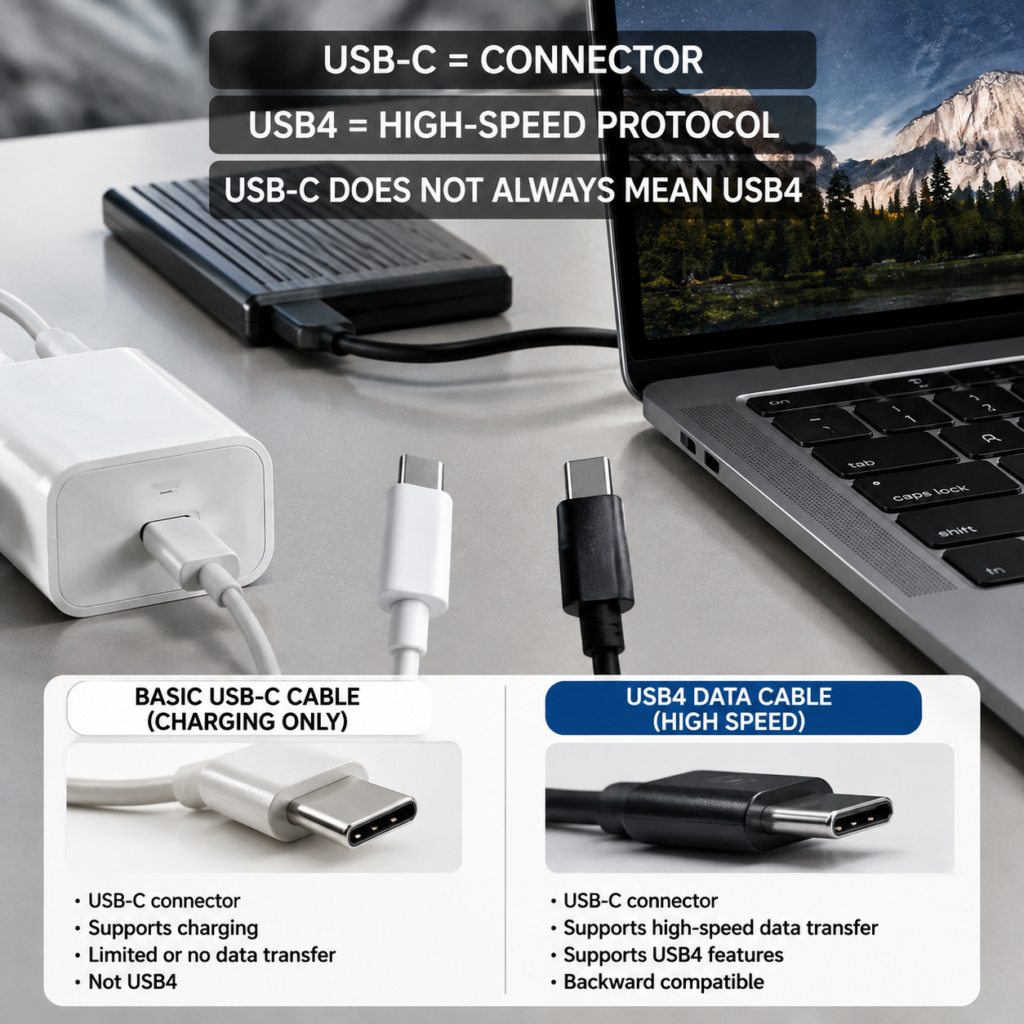
The Most Easily Confused Boundary: USB4 ≠ USB-C
- USB-C refers to the physical shape of that flat, reversible interface, adopting a unified reversible connector shape, but the internal wires, chips, and functions of different products may be completely different.
- USB4 is the function/data protocol standard running in the interface, which determines how fast the transmission rate is, whether it can connect to a monitor, and expand high-speed peripherals.
The relationship between the two is: devices that support USB4 must use a USB-C interface; but a USB-C interface does not necessarily support USB4. For example, the ordinary USB-C charging cable included with your phone looks similar to a USB4 cable, but it may only have a charging function, and does not even support USB 2.0 high-speed data, let alone USB4.
Core Principle of USB4: How Can One Cable Do Multiple Things at the Same Time?
Many people are curious: how can a tiny USB-C cable transfer files, connect to a 4K monitor, and charge a computer at the same time? This brings us to the core architecture of USB4 — the tunnel transmission mechanism, which we will explain in plain language.
Core Components: The “Transportation System” of USB4
You can think of a USB4 connection as a high-speed transportation system:
- Roles: There are “hosts” (such as your laptop, which is the signal initiator), “devices” (such as hard drive enclosures, monitors, which are signal receivers), “hubs/docking stations” (equivalent to overpasses, splitting one port into multiple), and “routers” (note: not the Wi-Fi router for home internet, but an internal signal dispatcher responsible for assigning different data to corresponding channels).
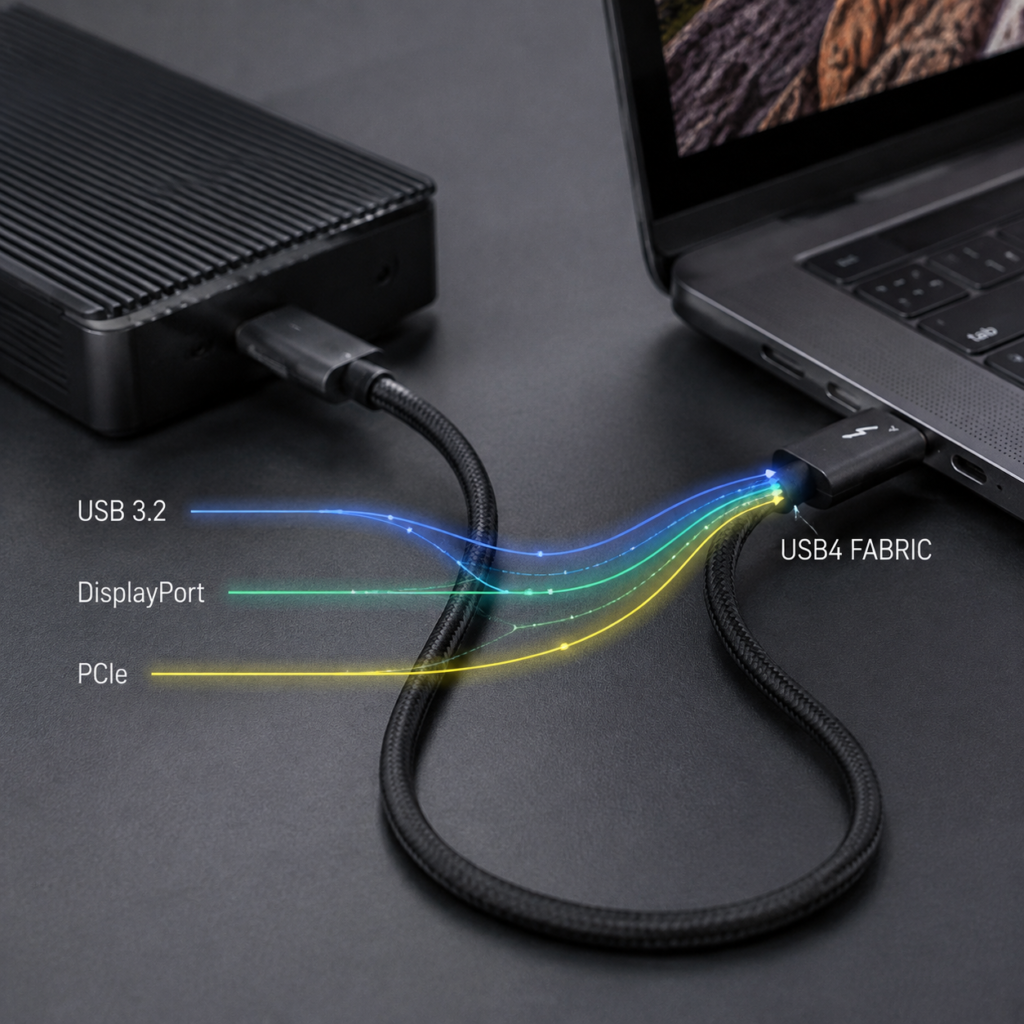
- Transmission Network (Fabric): Equivalent to the high-speed main road in the system, all types of data are transmitted on this main road.
- Link Training: This is the 1-2 seconds after you plug in the cable, when the devices at both ends automatically negotiate “what’s the maximum speed we can run? What functions do we support?”, and finally determine the highest configuration compatible with both parties.
Tunnel Transmission: Packing Different Signals into “Independent Carriages”
The core innovation of USB4 is tunnel transmission: different types of signals (such as high-speed data, video, peripheral signals) are each packed into independent “tunnels” (just like independent carriages in a high-speed train), and then transmitted together on the same high-speed main road. This way, one cable can do multiple things at the same time, without needing to plug in separate data cables, video cables, and power cables.
There are currently three common tunnel types: USB 3.2 (traditional high-speed data), DisplayPort (DP for short, video signal), and PCIe (high-speed peripheral signal, such as external graphics cards, high-speed solid-state drives).
Note here: not all USB4 products support all tunnel types. For example, some cheap USB4 docking stations may only support data and video tunnels, and do not support PCIe tunnels, so they cannot connect external graphics cards. The specifics depend on the manufacturer’s parameter description.
Dynamic Bandwidth Allocation: Total Bandwidth is Fixed, Allocated on Demand
Since all tunnels share the same main road, the total bandwidth is fixed. The USB4 system will dynamically allocate bandwidth according to the needs of different devices: for example, if you connect an 8K monitor, video will take up most of the bandwidth, so the speed of simultaneous file transfer will be slower.
Many people have a misunderstanding: they think that if the total bandwidth is high, all connected devices can run at full maximum speed. For example, a 40Gbps USB4 port connected to two 20Gbps hard drives: if transferring files at the same time, the total speed of the two hard drives combined is at most 40Gbps, it is impossible for each to run at full 20Gbps (unless they are not used at the same time).
Versions, Rates, and Actual Speeds
When buying USB4 products, the core parameter is speed, but many people have no concept of the nominal “20Gbps” or “40Gbps”, and don’t understand why the actual use can’t reach the nominal value. This part will explain it thoroughly.
Official Speed Tiers
USB4 speeds are divided into tiers; not all products called USB4 have the same speed:
- 20Gbps (Gen 2×2): The minimum mandatory requirement for the first generation of USB4. As long as it is a compliant USB4 product, it must support at least this speed.
- 40Gbps (Gen 3×2): The highest speed of the first generation of USB4, twice that of 20Gbps, suitable for large file transfer and high-speed solid-state drives.
- 80Gbps (Gen 4×2): A new symmetric transmission tier added in USB4 Version 2.0, with 80Gbps in both directions, suitable for professional-level multi-screen high-refresh and large file backup scenarios.
- Asymmetric Transmission: USB4 Version 2.0 optionally supports an asymmetric mode with up to 120Gbps one-way and 40Gbps reverse, mainly for DisplayPort display scenarios that require high one-way bandwidth. Whether it is actually available and whether it can reach this speed depends on the joint support of the host, router, device, display controller, and cable.
Nominal Speed ≠ Actual Transfer Speed
Many people buy a 40Gbps hard drive enclosure and find that the actual file transfer is only about 3GB/s, so they think it’s a false label. In fact, you can’t draw a conclusion based solely on this number.
- Nominal speed (such as 20Gbps, 40Gbps) is the link layer signal rate, in Gbps (gigabits per second), which includes overhead such as protocol verification and control signals, and is not all used for file transfer.
- Actual file transfer speed is usually significantly lower than the link nominal speed, and cannot be judged by a fixed percentage. The actual values of 20Gbps and 40Gbps links shall be subject to actual measurements of the host, cable, hard drive enclosure controller, and SSD. Also note that Gbps is a bit unit, and GB/s is a byte unit; when converting theoretically, you need to divide by 8 first.
In addition to protocol overhead, actual speed is also affected by many factors: such as the speed of your hard drive itself (if it’s a SATA solid-state drive, the fastest is only 500MB/s, no matter how fast USB4 is, it’s useless), controller performance, file size (transferring thousands of small files will be much slower than a single large file), temperature, whether bandwidth is shared with other devices, etc.
Speed Compatibility Rules: Weakest Link Principle
USB4 speed compatibility follows the link weakest link principle (the maximum capability of the entire link is determined by the component with the worst performance):
- Higher versions of USB4 are backward compatible with lower versions of USB4, USB 3.2, and USB 2.0 devices. They can be used when plugged in, but the speed will drop to the level of the lower version.
- Older USB4 devices (such as first-generation 20G/40Gbps products) usually cannot obtain 80Gbps capability only through firmware upgrades, because their main controller, PHY, and related hardware must support the 80Gbps mode of USB4 Version 2.0. At the same time, hosts, devices, and cables that meet the 80Gbps requirements are required, and it cannot be simply attributed to the different number of wire cores.
- The final actual speed is usually determined by the party with the lowest capability among the host port, cable, and peripheral. For example: a 40Gbps computer USB4 port + a 20Gbps cable + a 40Gbps hard drive can only run at a maximum of 20Gbps.
Mandatory Requirements and Optional Functions
Many people think that as long as it’s called USB4, it must support all functions, but that’s not the case. In the USB4 specification, only basic requirements are mandatory (for products that have passed USB-IF certification), and many high-end functions are optional for manufacturers.
Mandatory Basic Requirements for Certified Products
First of all, it should be noted that the following mandatory requirements only apply to USB4 products that have passed USB-IF official certification. Uncertified off-brand products may have falsely labeled parameters and are not guaranteed to meet these requirements.
Compliant certified USB4 products must meet:
- The interface must be a standard USB-C physical interface, not other shapes.
- It must support at least 20Gbps USB4 data transmission; it cannot be called USB4 if it can’t even reach 20Gbps.
- It must support the USB4 transmission architecture and basic tunnel transmission functions.
- Connection management must comply with the USB Type-C specification, and it can automatically identify devices and configure functions when plugged in.
- USB4 products shall implement corresponding compatibility and connection management capabilities in accordance with USB4 and USB Type-C specifications, and are usually backward compatible with devices that support corresponding USB-C basic functions; however, charging, USB 2.0 data, power supply direction, and specific functions still depend on the product category and manufacturer’s implementation, and it cannot be promised that charging and data connections can be completed with all USB-C devices.
Optional High-Speed Tiers
20Gbps is the mandatory minimum requirement, and higher speeds are optional for manufacturers:
- 40Gbps: The high-speed tier of the first generation of USB4, twice the speed of 20Gbps, suitable for users who frequently transfer large files and use high-speed solid-state drives.
- 80Gbps: A new tier added in USB4 Version 2.0, which can only be used if the host, cable, and device all support USB4 Version 2.0.
- Applicable scenarios: large file copying, external high-speed solid-state drives, multi-screen high-refresh display.
- Judgment tip: If the product only marks “USB4” and does not write the specific speed, don’t assume it’s 20G or higher. Be sure to read the detailed specification sheet to avoid merchants selling the lowest tier as a high-end tier.
Optional Expansion Functions
Whether a USB4 device can output video depends on the device category and port implementation. Whether a USB4 host, Hub, or docking station supports DisplayPort tunnel shall be confirmed according to its certification and specifications; USB-C ports may also independently support DP Alt Mode. Capabilities such as PCIe tunnel and Thunderbolt compatibility need to be checked according to specific product specifications, and cannot be judged solely by the name “USB4”.
- Video output: Only with DP tunnel or DP Alt Mode support can an external monitor be connected.
- High-speed peripheral expansion: Only with PCIe tunnel support can PCIe devices such as high-speed hard drives and graphics cards be connected externally.
- Thunderbolt compatibility: Optional support for interworking with Thunderbolt 3/4 devices, which requires simultaneous support from both the host and peripherals.
Key reminder: Before buying, be sure to separately check whether the functions you need are marked. For example, if you want to buy a USB4 docking station to connect an external graphics card, you must confirm that it supports PCIe tunnel, otherwise it won’t work.
What is the Relationship Between USB4 and PD Charging?
Many people think that an interface that supports USB4 must support fast charging, but that’s not the case. USB4 and charging are two independent sets of specifications. Let’s clarify the division of labor among the three.
Division of Labor and Boundaries of the Three
The same USB-C port may support three specifications at the same time, but each has its own role:
- USB4: Belongs to the data protocol layer, responsible for high-speed data, video transmission, and channel management, regardless of the charging power.
- USB Type-C: Defines connectors, cables, CC detection, connection roles, default power supply capabilities, etc.
- USB PD: Belongs to the power supply protocol layer, which negotiates higher voltage, current, and power on the basis of USB Type-C connection, such as 65W and 100W fast charging.
That is to say, the same USB-C port can support all three at the same time (what we often call a “full-featured USB-C port”), or it can only support some functions. For example, the USB-C port of some chargers only supports PD charging and does not support USB4 data.
Beginner judgment tip: For charging power, you must look at the PD label. Don’t just think “supports USB4” means fast charging. For example, some USB4 hard drive enclosures only have 10W power supply, which can’t charge a computer at all.
Charging Power Rules: Also Follow the Weakest Link Principle
The actual maximum charging power is still determined by the party with the lowest capability among the charger, cable, and device, and several conditions must be met at the same time:
- All three must support the same PD voltage tier, otherwise they cannot run at full capacity. For example, if the charger only has a 100W tier of 20V5A, and the device only supports a 27W tier of 9V3A, then the maximum charging is only 27W.
- For power of 100W and above, a cable that supports 5A current is required, and the cable has a built-in E-Marker chip (which allows the device to read the power parameters of the cable); 240W PD fast charging also requires support for the EPR specification (Extended Power Range of PD 3.1).
- The device’s power strategy, temperature, and the docking station’s power distribution will all affect the actual power. For example, if the total power of the docking station is 120W and its own circuit consumes 20W, then the maximum reverse charging for the computer is 100W.
Note: The USB4 specification does not mandate high-power power supply. For the specific supported power, you must look at the product’s PD parameter label.
Common USB4 Power Supply Scenarios
The advantage of USB4 is “one cable for multiple uses”, and there are three common power supply scenarios:
- Docking station reverse power supply: A single USB4 cable connects to the laptop, transferring data and connecting peripherals while charging the laptop, without needing to plug in a separate power supply.
- One-cable display: A single USB4 cable connects to the computer, transmitting video and powering the computer at the same time, and can also use the USB ports on the display, which is equivalent to integrating the function of a docking station.
- High-speed hard drive enclosure: A single USB4 cable connects to the computer, transferring data while powering the hard drive enclosure, without needing an extra power adapter.
Core Requirements and Identification of USB4 Cables
Cables are the most prone to pitfalls — USB-C plugs adopt a unified reversible connector shape, but cables may differ in markings, structure, electronic markers, and supported functions. We will teach you how to identify them.
Common Misconceptions About Appearance Identification
First, remember: the connector shape of USB-C plugs is basically unified, but the number of internal wire cores, whether there is a chip, and how many high-speed channels different cables have may vary greatly.
Ordinary USB-C charging cables may only have 2 power supply wires, and do not even support USB 2.0 data, let alone USB4 high speed. Many people also think that “the thicker the cable, the braided outer sheath means it’s a high-speed cable”, but that’s actually wrong — some thick cables just add a lot of power supply wire cores, without shielding wires and differential wires for high-speed data, and still don’t support USB4.
The first principle to avoid pitfalls: don’t just look at the appearance; the core is to look at parameter markings and certification.
Passive Cables vs Active Cables
There are two types of USB4 cables, with different structures and applicable scenarios:
- Passive cable: Transmits signals by the copper core of the cable itself, with simple structure, low cost, no direction requirement, and can be used with either end plugged in.
- Active cable: Built-in signal compensation chip, which can amplify attenuated high-speed signals, suitable for long-distance high-speed transmission, with higher cost. Some active cables have direction requirements (one end marked Host plugs into the host, the other end marked Device plugs into the device; if plugged in reverse, it may not work or slow down).
Selection logic: For short distances (within 1 meter), passive cables are fine, with high cost-effectiveness; if long-distance high-speed transmission is needed, choose active cables.
Speed and Length Reference (Non-Mandatory Standard)
The farther high-speed signals travel, the more severe the attenuation. Therefore, cables with different speeds have different common compliant lengths (note: this is not a mandatory legal standard, but a common industry compliant design; the specifics are subject to the product’s official certification parameters):
- 20Gbps passive cable: The common maximum length is about 2 meters. Whether it can maintain this speed depends on the cable design and certification results.
- 40Gbps passive cable: Common length is about 0.8-1 meter. After exceeding the rated length, it may drop to a lower mode, or may not be able to establish the corresponding link.
- Long-distance high-speed connections (such as 40G/80Gbps over 2 meters): Usually require active cables with chips.
The supportable length of passive cables depends on the specific speed, cable design, and certification results. It shall be subject to the clearly marked USB4 speed and length of the cable. You cannot assume that a longer cable will automatically slow down to 20Gbps, nor can you judge whether a product is falsely labeled solely by its length.
Key Points for Identifying Qualified USB4 Cables
How to judge whether a cable really supports USB4? Look at these points:
- Certification mark: Prioritize products with the USB-IF official certification Logo, and the corresponding speed must be marked next to the Logo (for example, marked 40Gbps). Don’t just think a USB Logo means it’s USB4.
- Parameter marking: The PD power supply capability (such as 60W, 100W, 240W) must be clearly marked. Be cautious when buying cables without marked power.
- Chip requirements: High-speed, high-power cables must have a built-in E-Marker chip. This chip allows the device to read the speed and power parameters of the cable, which can be found in the system information of some computers and mobile phones.
- Pitfall avoidance reminder: “Thunderbolt compatible” and “Type-C full-featured cable” are not equivalent to complying with the USB4 specification. Be sure to check whether there is a clear USB4 speed mark and certification. For example, some “full-featured cables” only support 10Gbps USB 3.2 and do not support USB4.
Core Compatibility Rules
USB4 compatibility is both complex and simple. The core is several principles. Let’s clarify the common compatibility relationships.
General Compatibility Principles
The final speed is usually limited by the lowest common speed of the host, cable, and peripheral. Specific functions depend on whether all parties jointly support the function, as well as connection roles, topology, and system conditions. For example, if any key port does not support DP output, video cannot be obtained solely by a higher-speed cable.
For example: a 40Gbps computer USB4 port + a 20Gbps USB4 cable + a 40Gbps USB4 hard drive can only run at a maximum of 20Gbps in the end.
Note: Even if all three devices are marked “USB4”, you must also check their respective speed tiers and function support — for example, if the computer’s USB4 port does not support video output, even if the cable and monitor both support it, there will be no picture.
Core Differences Between USB4 and USB 3.2
Many people don’t know the difference between USB4 and the previous USB 3.2. Let’s compare them with a table for clarity at a glance:
| Comparison Dimension | USB4 | USB 3.2 |
|---|---|---|
| Supported interface types | USB-C only | Both USB-A and USB-C |
| Minimum speed requirement | Mandatory minimum 20Gbps | Minimum 480Mbps, maximum 20Gbps |
| Expansion capability | Supports tunnel transmission of video and PCIe peripherals | The USB 3.2 specification itself defines USB data transmission and does not define DisplayPort video; whether a product using USB-C can output video depends on whether the port supports DisplayPort Alt Mode or USB4’s DisplayPort tunnel |
| Connection management | Mandatory unified management based on USB-C specification | No mandatory connection management requirements |
Relationship and Compatibility Between USB4 and Thunderbolt 3/4
Many people think USB4 is Thunderbolt 4, but that’s not the case. The two are both related and different:
- Technical origin: USB4 incorporates the core tunnel technology of Thunderbolt 3 donated by Intel, which is equivalent to a universal version of the high-speed interface standard; while Thunderbolt is a certification system led by Intel.
- Similarities: Both use USB-C connectors and can support high-speed data and display-related capabilities; the first generation of USB4 has a maximum of 40Gbps, and the specific capabilities of Thunderbolt 3/4 are determined according to the corresponding certification and product specifications. USB PD and charging power cannot be inferred solely from the name USB4 or Thunderbolt.
- Core differences: Thunderbolt 4 has stricter certification requirements, such as must support 40Gbps, must support video output, must support PCIe tunnel, and must be compatible with Thunderbolt devices; while many functions of USB4 are optional, with a lower threshold.
- Compatibility conditions: Only when the USB4 port supports the “Thunderbolt compatible” function can it connect to Thunderbolt 3/4 devices, and the speed and functions still take the lowest common capability of both parties.
- Common misconception: USB4 ≠ Thunderbolt 4, and supporting “Thunderbolt compatible” does not mean passing the official Thunderbolt certification. Don’t be fooled by merchants’ publicity.
Implementation Methods and Limitations of Video Output
There are two common implementation methods for USB4 video output:
- USB4 DP Tunnel: Packs video signals into a tunnel, uses USB4’s high-speed data channel, and shares available bandwidth with other tunnels.
- DP Alt Mode: Transmits DisplayPort signals directly on the USB-C high-speed channel, different from encapsulating DP into a USB4 tunnel; it does not count against USB4 tunnel bandwidth, but will occupy the USB-C high-speed channel and may affect other high-speed functions on the same port.
Either way, the host’s graphics card, port, cable, docking station, and monitor all need to support the corresponding specifications for normal output. The actual parallel capability, remaining data bandwidth, and available display modes depend on the specific implementation of the port and device.
The bandwidth requirement of 8K 60Hz depends on resolution, color depth, chroma sampling, DSC compression, and DP version. It cannot be fixedly written as about 30Gbps, nor can the remaining data rate be calculated by directly subtracting video bandwidth from 40Gbps. It shall be subject to the specific display modes and bandwidth allocation announced by the host, docking station, and monitor.
Core Concept Boundary Comparison
Finally, we compare the four most easily confused concepts (USB-C, USB4, USB PD, Thunderbolt 4) together to help you completely distinguish them:
| Comparison Dimension | Physical Interface | Core Function | Mandatory Requirements | Common Products |
|---|---|---|---|---|
| USB-C | Yes (flat, reversible) | Physical connection, basic power supply | Interface shape complies with specifications | Charging cables, phone interfaces, ordinary laptop interfaces |
| USB4 | USB-C only | High-speed data, tunnel expansion | Minimum 20Gbps, supports tunnel architecture | High-speed hard drive enclosures, high-end laptop interfaces, full-featured high-speed cables |
| USB PD | Not limited (commonly USB-C) | Charging power negotiation | Complies with power communication specifications | Fast chargers, fast charging cables |
| Thunderbolt 4 | USB-C only | High-speed data, video, peripheral expansion (Intel certified) | Minimum 40Gbps, supports video/PCIe/Thunderbolt compatibility | Intel-certified laptops, docking stations, high-speed cables |
How to Judge Whether a Product Meets USB4 Requirements by Yourself?
Without professional tools, mastering these methods will allow you to judge by yourself whether a product really complies with the USB4 specification and avoid marketing gimmicks.
USB-IF Official Certification Verification
USB-IF is the industry organization that develops USB standards, and its certification is currently the most authoritative USB4 compliance verification method:
- Certification nature: It is a voluntary industry certification, not a national mandatory safety certification.
- Certification value: The declared functions of the product have passed official compatibility tests, and the authenticity of parameters is much higher than that of uncertified products.
- Certification scope: It only covers declared ports, cable categories, and test items. It does not mean that all functions have passed certification — for example, some products have declared 20Gbps USB4 data certification but not video functions, so the video function has not been tested.
- Note: USB-IF certification mainly verifies USB compatibility and declared functions. Product safety, EMC, and other regulatory compliance shall be checked separately for applicable regulations, test reports, and conformity assessment requirements according to the sales region and product category; FCC mainly involves US radio frequency/electromagnetic compatibility requirements, and CE and UKCA are not single “safety certifications” either.
- Verification method: You can check the authenticity through the TID (Certification ID) in the USB-IF official database, and you can ask the merchant for the TID number when buying.
Tips for Judging USB4 Cables
- Look at the markings: Is there an official USB4 Logo, is there a clearly marked speed, is there a marked PD power.
- Check certification: Prioritize products with USB-IF certification and queryable TID.
- Avoid pitfalls: Be cautious with cables that only mark “USB4 cable” and do not mark the specific speed. Be sure to check the specification sheet to avoid buying the lowest-tier 20Gbps cable or even falsely labeled products.
Judgment of Data Port vs Pure Charging Port
There is a very common marketing gimmick now: packaging pure charging chargers/ports that only support PD fast charging as “USB4 chargers”, which actually cannot transmit high-speed data at all.
- Core difference: USB4 ports have data controllers and support high-speed data transmission; pure charging ports have no data controllers and can only supply power.
- Judgment method: Check whether there is a data transmission rate mark on the product parameter page. If there are no data parameters, no matter what it’s called, it’s a pure charging port.
Tips for Judging Device USB4 Ports
How to tell if the USB-C port on your laptop is USB4?
- Look at the markings: Is there a USB4 or Thunderbolt Logo next to the interface, or check the port speed mark on the product parameter page.
- Simple actual test: Use a USB4 cable that you are sure is compliant to connect the computer to a USB4 device (such as a high-speed hard drive enclosure). You should first check the official specifications of the computer and device, USB-IF certification information, or the dedicated USB4/Thunderbolt status tool provided by the system; for Windows, you can use the system’s USB4-related settings or manufacturer’s diagnostic tools (depending on the system version and hardware), and cannot rely solely on Device Manager. The USB information in the Mac System Report may not directly present the actual negotiated speed of the USB4 link, and the actual transmission capability should also be actually tested with a device of known performance.
Note: Some USB-C ports only support charging or USB 2.0 low-speed data, and their appearance is exactly the same as USB4 ports. Don’t draw conclusions just by looking at the shape.
Tips for Judging USB4 Docking Stations
When choosing a USB4 docking station, don’t just look at the three words “USB4”; focus on these parameters:
- Upstream port speed: This is the speed of the port connected to the computer, whether it’s 20Gbps or 40Gbps, which determines the theoretical link upper limit between the host and the docking station. But the actual allocatable bandwidth also depends on the docking station’s internal controller, each downstream port, video tunnel, and multi-device sharing strategy.
- Reverse charging power: This is the wattage for powering the laptop, not the total power of the adapter — for example, the total power of the adapter is 120W, the docking station itself consumes 20W, so the power for the computer may only be 100W. Don’t be fooled by the total power.
- Video capability: Look at the specific supported resolution, refresh rate, and number of screens. Don’t just look at “supports dual screens” — the bandwidth requirements of dual 1080P and dual 4K 60Hz are far apart.
- Bandwidth description: Check whether there is mention of bandwidth allocation when multiple devices are used at the same time. For example, some docking stations have two high-speed hard drives plugged in, and the speed will be halved when transferring files at the same time, which is because the total bandwidth is insufficient.
Common Misconceptions and Troubleshooting
Finally, we have sorted out the most common pitfalls people fall into, as well as common problems that can be troubleshooted without professional tools.
High-Frequency Cognitive Misconceptions
- Misconception 1: All USB-C cables support USB4 → Correct answer: USB-C is just the interface shape. Most ordinary USB-C cables only have charging or USB 2.0 data capability, and do not support USB4 high speed at all.
- Misconception 2: Products marked USB4 must be faster than USB 3.2 → Correct answer: The speed is determined by the lowest common speed of both parties. For example, a 20Gbps USB4 port connected to a 10Gbps USB 3.2 hard drive has a speed of 10Gbps, which is not necessarily faster than a 20Gbps USB 3.2 device.
- Misconception 3: USB4 ports must support high-power fast charging → Correct answer: USB4 is a data protocol, and the power supply depends on the PD specification. Some USB4 ports only have 15W power supply, or even can only draw power but not supply power.
- Misconception 4: USB4 must support video output → Correct answer: Video output depends on the device category, port implementation, and related DP tunnel or DP Alt Mode support, requiring the cooperation of multiple links.
- Misconception 5: Expensive cables must be USB4 high-speed cables → Correct answer: Price cannot be used as a basis for judgment. Some expensive cables are high-power charging cables or Thunderbolt cables, but they may not comply with the USB4 specification. You still need to look at parameters and certification.
Objective Limitations in Actual Use
Although USB4 is powerful, it also has physical limitations. It’s not “as long as you buy the highest tier, you can use it casually”:
- Length limitation: High-speed tiers have strict requirements on cable length. The supportable length of passive cables depends on the specific speed, cable design, and certification results; after exceeding the rated capability, the connection may drop to a lower mode, or may not be able to establish the corresponding link, and it is not guaranteed that it will automatically slow down to 20Gbps. It shall be subject to the clearly marked USB4 speed and length of the cable.
- Bandwidth limitation: When multiple devices use high-bandwidth functions at the same time, they share the total bandwidth, and the speed of a single device will decrease.
- Version limitation: 80Gbps is only supported by USB4 Version 2.0 devices. Older USB4 devices cannot obtain it only through firmware upgrades, because the main controller, PHY, and related hardware must support the corresponding 80Gbps mode.
Basic Troubleshooting for Common Problems (No Professional Tools Required)
If you encounter problems, don’t rush to return the product. First troubleshoot according to these steps:
- Only charges, cannot recognize high-speed data: First confirm whether the cable supports USB4 high speed, then confirm that the computer’s port is a USB4 port, and finally unplug it and plug it back in tightly — sometimes if it’s not plugged in properly, link training will negotiate a low speed.
- Hard drive transfer speed is much lower than nominal: First confirm that the computer, cable, and hard drive all support the same speed tier, then bypass the docking station and plug directly into the computer to rule out the docking station’s bandwidth limitation; also check whether the hard drive itself is fast enough, and whether you are transferring a large number of small files.
- External monitor has no signal/low refresh rate: First confirm that the host’s USB4 port supports video output, then confirm that the cable supports video transmission (has DP channel), and then check whether the monitor’s input source is selected correctly. The refresh rate is affected by display resolution, color depth, chroma sampling, DSC, and DP version. You cannot fixedly judge 4K 144Hz as requiring at least 40Gbps; you should check the clear support of the host, cable, docking station, and monitor for the target mode.
- Charging is unstable/power is insufficient: First confirm that the PD power of the charger, cable, and device all meet the requirements. For example, if the computer needs 65W, the charger should provide a compatible PD output not lower than the device’s demand, and the cable should support the corresponding voltage and current; if 65W is supplied through 20V, it requires more than 3A, and usually a 5A cable with E-Marker should be used. If charging through a docking station, check whether the docking station’s reverse charging power is sufficient; too high temperature will also cause power reduction.
Summary
Overall, USB4 is an important step for the USB-C interface towards “full-featured universal” — it integrates the capabilities of high-speed data, video, and power supply with a single cable, greatly reducing the number of cables we need to carry. But its “flexibility” also brings a lot of information asymmetry. Many merchants use the three words “USB4” for marketing, and the actual product speed and functions may be very different.
After reading this article, you should be able to distinguish the commonly confused concepts of USB-C, USB4, USB PD, and Thunderbolt, understand the speed, power, and function markings of USB4 products, distinguish between nominal speed and actual speed, judge whether a product meets requirements through certification and parameters, and troubleshoot common connection problems by yourself.
Remember a few core principles and you won’t fall into pitfalls: USB-C is the shape, USB4 is the function, charging depends on PD, speed depends on the lowest common speed, and specific functions depend on whether all parties jointly support them. When in doubt, prioritizing clear parameters and official certification is much more reliable than looking at price and appearance.